


How to change font size in WordPress: three ways
This article is 4 years old — prices and terms may have changed.

To make the text on a site read better, you often need to change the font size in WordPress. You can do it with a plugin or by adding a few lines of code to a CSS file. There is a third way as well — change the font size in the Gutenberg editor.
Follow the instructions and it will be quick and simple.
Method 1. Changing the font size with the Advanced Editor Tools plugin
Advanced Editor Tools is a completely free component that brings the classic toolbar back to the editor.
You will find the plugin in the official WordPress repository. After the usual install and activation, go to the plugin settings.
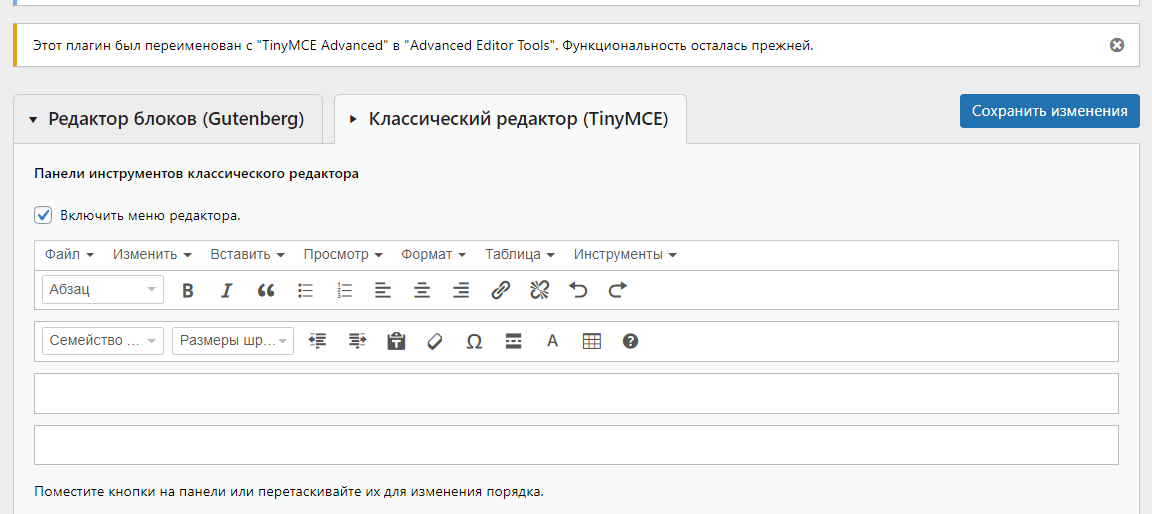
The plugin will offer to switch between the Gutenberg block editor and the classic TinyMCE editor. Choose the second option and save the changes.
Make sure you have ticked the checkbox
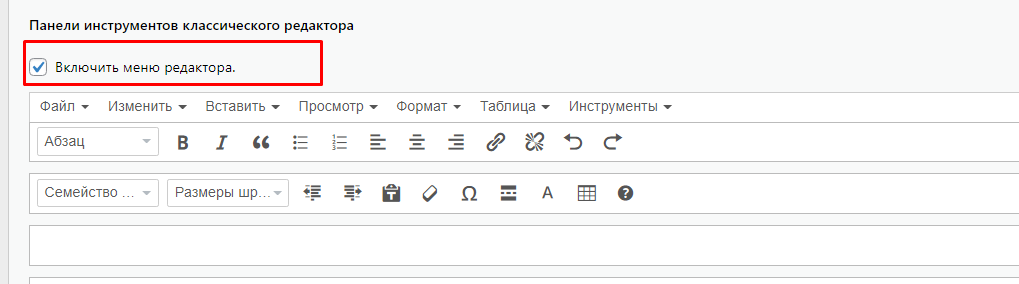
What to do next, if you have chosen the classic editor as the only option.
Go to Posts → Add New, or open one of the existing posts for editing. If you picked the classic editor only, you will see roughly this.

The rest is about as simple as it gets. Add the text, select the fragment whose size you want to change and choose the size to change it to.
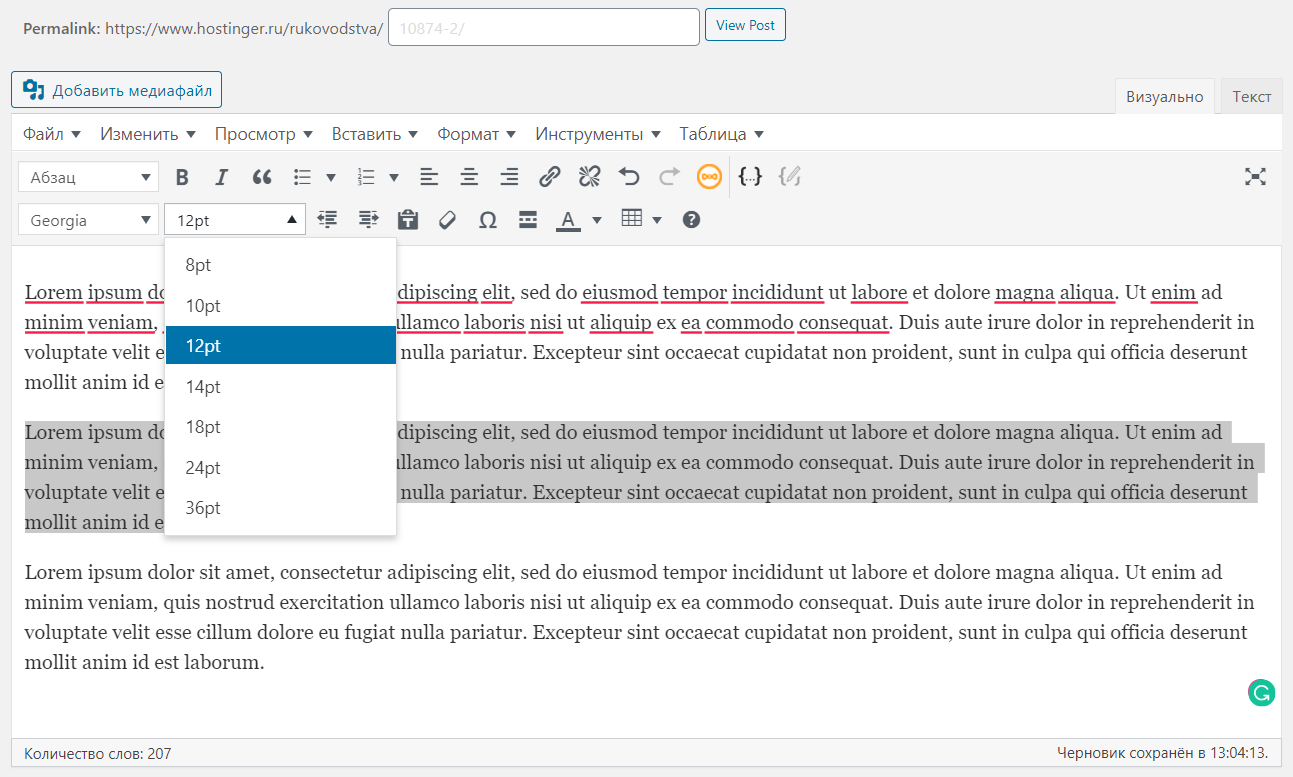
The result looks like this.

Method 2. Changing sizes with CSS
The first method is simpler. But it will not do if you use Elementor or another page builder of that kind. Changing the font size with CSS is a little harder, but it is a universal solution and the classic one.
This option is more complicated — though only if you have never worked with CSS before. Our instructions will help you get it done quickly and correctly.
You can add the code to the CSS through the editor or through the customizer. Here is how. The advantage of working with CSS is that you can change the font size of any element on the site without plugins and independently of the rest of the page.
Let us go through it:
In the dashboard choose the Appearance → Customize menu item.
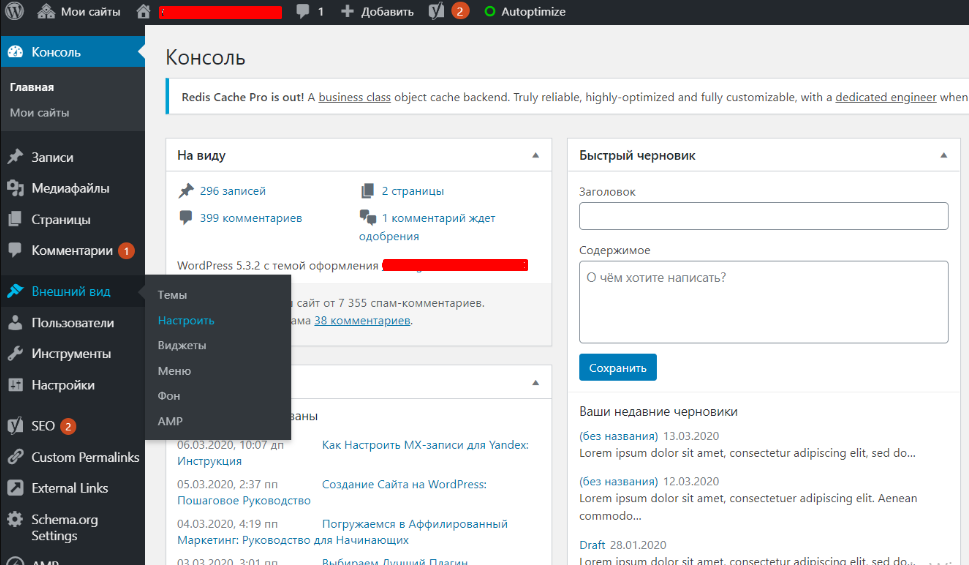
Then, in the menu that opens, choose Additional CSS.

The next step is to add the code you need to the field on the right.

Now let us work out exactly which code to add.
- To change the font everywhere, paste:
body {
font-size: 1.25rem;
}
The value 1.25 can be replaced with another number.
2. To change the font in paragraphs.
p {
font-size: 25px;
}
3. To change the font in some of the headings
h2 {
font-size: 2.5em;
}
The rule will apply only to headings marked h2.
4. To change the font size in the side menu
.sidebar li {
font-size: 12px;
}
5. To make the text in the footer bigger or smaller
.footer {
font-size: 150%;
}
6. Changing font sizes for particular screen sizes
html {
font-size: 18px;
}
@media (min-width: 900px) {
html {
font-size: 20px;
}
}
CSS styles accept several units of measurement:
- Em — 1em equals the font size on the page, so if the font size is 12pt, then 1em = 12pt.
- Pixels — a pixel is a single dot on a computer or mobile screen.
- Points — this unit comes from print. One point equals 1/72 of an inch.
- Percentages — this value is 100% by default and changes as you increase or decrease it.
Method 3. Changing font sizes in the Gutenberg editor
Gutenberg has become the standard WordPress editor. It has offered ways to change the font since version 5.3, when Gutenberg was still one of the plugins.
In Gutenberg text is added through one of the editor blocks. To change the font size, simply select the text and choose the size you want in the menu on the right.

As you can see, it is all very quick and simple.
Summary
An easily readable font can have a serious effect on user behaviour and on a site's conversion rate. WordPress gives you plenty of ways to reformat text, changing the font among them.
You can make the font bigger or smaller with plugins, in the Gutenberg editor or by editing CSS files.
Grow your business online with Host4Biz, and read our blog.