


The Rank Math SEO plugin: what it can do and how to configure it
This article is 4 years old — prices and terms may have changed.
Rank Math, the WordPress SEO plugin, is a tool for on-site optimisation whose free version beats Yoast SEO on many counts. The plugin is part of the toolkit that comes with WordPress hosting from Host4Biz, so we decided to go through what Rank Math can do and how to configure it after installation.
The main features and advantages of Rank Math
Here is just a part of what the plugin gives you:
- You can choose a post's primary category. When you publish a post in several categories at once, you can say which of them appears in the breadcrumbs on the page.
- The category slug can be removed from the post URL. The plugin strips the category out, making addresses shorter and easier to remember. It does so without hurting security and without getting in the way of indexing.
- Meta tags and social markup are generated quickly. The plugin writes meta tags for Google correctly and fast, and generates the markup that governs how content looks on social networks. That lifts click-through rates in Google and on Facebook.
- Previewing and tuning social shares. In the plugin menu you can see and adjust how a share with a link will look on Twitter, LinkedIn and Facebook.
- Stop words are removed from URLs automatically. When building slugs and URLs, the plugin takes out words such as a, and, the and the like, to make the address simpler and easier to remember.
- Pages can be closed off from indexing quickly. If you need to keep a page out of the index, Rank Math does it without editing robots.txt.
- Breadcrumb settings for the site. You can configure how the home page label is shown, along with other parameters.
- Redirects from attachments to their parent pages. You can quickly set up redirection from attachment pages to the addresses where they are published. Useful for anyone hosting downloadable files and video on their site.
- Importing and exporting settings from other SEO plugins. Migrating to Rank Math from Yoast SEO or its equivalents is simple and quick. Settings, titles and descriptions can be exported in a matter of seconds through the setup wizard.
- Local SEO tools. In the plugin menu you can enter company information that will appear in the meta tags and improve the site's ranking.
- Compatibility with WooCommerce. The plugin works with the product and product category pages created by WordPress together with WooCommerce.
- Focus keywords for a page. The free version lets you set up to 5 keywords for a page to be optimised around. The plugin scores the quality of that optimisation automatically and suggests how to improve it. For comparison, the free version of Yoast allows one keyword per page.
- Dedicated Recipe markup. Food bloggers and cookery sites will appreciate this one. Add the extra information about a recipe and you get a rich snippet for it in the search results, which lifts the page's click-through rate and traffic from Google.
- Open Graph markup is generated automatically. With Rank Math you no longer need an extra plugin to generate Open Graph markup. One plugin generates and stores all the necessary tags for every page. That saves a serious amount of time and insures you against mistakes.
- A simple robots.txt editor. Rank Math gives you a simple, convenient tool for editing the robots file, and you can work on it straight from the admin panel. Solving indexing problems becomes far easier.
- Automatic generation of sitemap.xml. This is another important part of getting a site indexed. Whether new pages reach the search results depends on how the sitemap file is built and updated. If you do not know how to create a sitemap yourself, use Rank Math — the plugin will do it all for you, and without mistakes.
- A quick site audit. One click in the menu gives you a detailed report on the state of the site across 40 metrics, plus recommendations for improving it. It is an excellent substitute even for some paid site audit tools.
That list of features and advantages will convince many people to use Rank Math on their own sites. Next we go through installing and configuring it in detail.
Installing and activating the plugin
Rank Math is installed and activated the usual way. We described the sequence of steps in a separate article on the Host4Biz blog. Here we will go into the plugin's settings in more detail.
You may also find this useful: How to install the WordPress CMS on hosting
How to configure the Rank Math plugin
After activation, Rank Math is configured through the setup wizard.

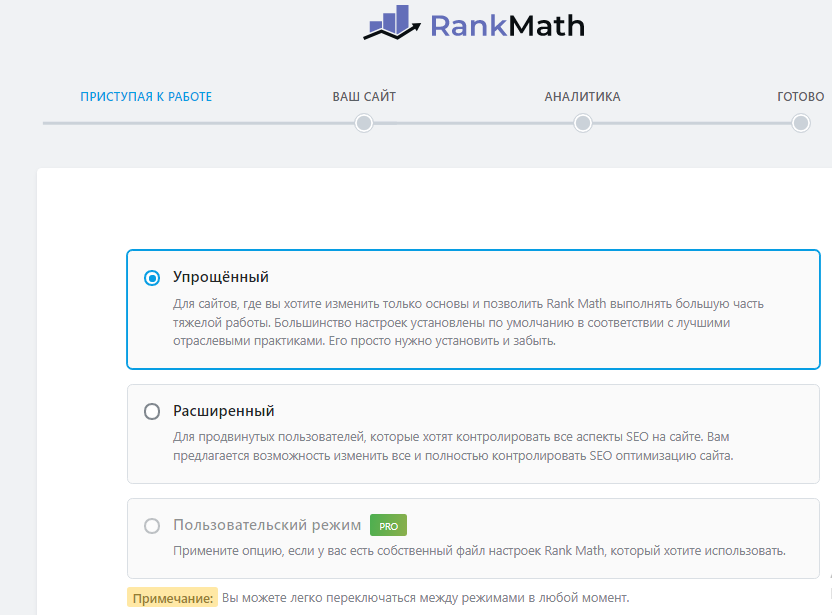
Follow the instructions in the menu to get everything right. First choose the installation mode and click the Start Wizard button.

To begin with, enter the basic information about the site and upload the images for social networks.


We recommend not skipping this stage and filling in all the information. After that you need to connect your Rank Math account to the plugin.


The easiest way to register is with your Gmail account. We would suggest picking one other than the address you use for all your email correspondence.

Once you have signed in through Gmail you will see this window:

If you are using the shortened installation, you will see this message:

In the dashboard you will see the list of plugin features that can be switched on and off:
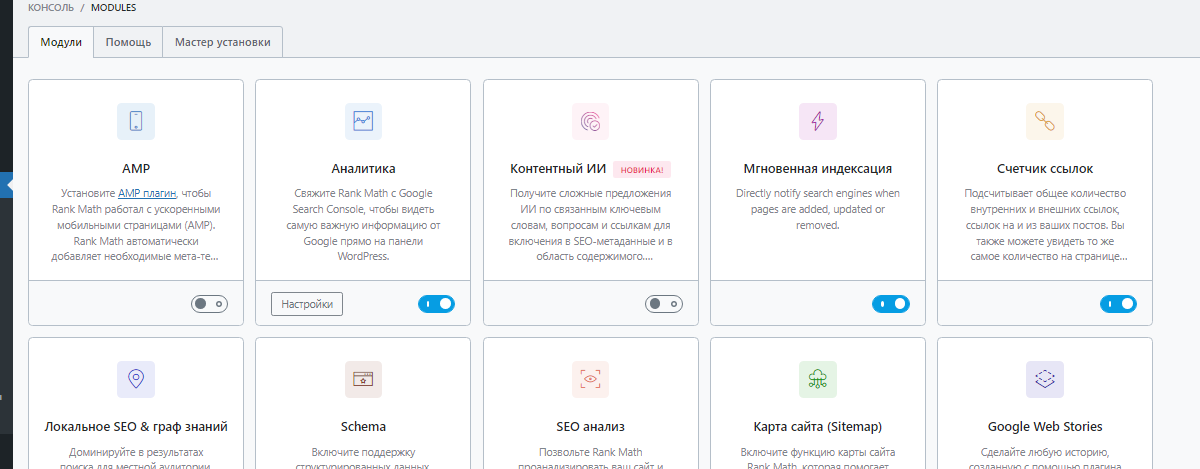
Separate tabs hold the help section and the setup wizard, which you can use to reconfigure an already installed plugin.
Advanced installation mode
Let us go separately through installing and configuring Rank Math in advanced mode.
This route suits the case where you need to export information and settings from other plugins you used before.
Advanced mode has more installation stages.

Stage 1. Importing page settings from the data of other SEO plugins
This stage exists in the wizard to make migrating to Rank Math from another plugin quick and convenient. Most often that other plugin is Yoast SEO.

In this menu you can choose which information you want to import. Click Start and wait for the process to finish.

Stage 2. Entering information about the site
Everything at this stage matches the shortened installation. Be sure to state the type of site: the plugin needs it to generate the Open Graph markup for the site's pages correctly.
The categories available are:
- a blog;
- a personal portfolio;
- a small business site;
- an online shop;
- another personal site;
- another business site.
If you choose a blog, a small business site, an online shop or another business site, the plugin will also ask for the type of company and its name.

Stage 3. Connecting the plugin to Google services
To integrate the plugin with Google Search Console and Google Analytics, click the Connect Google Services button.

In the window that opens at the next step, choose the account you used to register the site in Google Analytics and Google Search Console.

Allow the application access to the Google account. In the menu, choose the Search Console and GA accounts linked to the site. For convenience, turn on the Email Reports option — that way you will be notified about important events on the site.
Once you are done with that, you can move on to configuring the sitemap.
Step 4. Configuring sitemap.xml
Correct, quick indexing of every page on the site depends on the .xml sitemap. The file holds the full list of the site's URLs. That helps search robots understand the structure of the site better and crawl all of its pages faster.
Rank Math lets you configure the sitemap flexibly. The plugin makes the site legible to search robots.
Before configuring anything, turn sitemap generation on in the plugin menu.

The next step is to include images in the sitemap. That is another single flick of a switch. As a result, search engines will find it easier to index all the visual content on the site, which helps you pick up extra traffic.

The search results will then carry the fullest possible information about your web pages.
After that, choose which types of posts and pages should go into the sitemap. If you are in doubt, you can simply leave every checkbox ticked.

Save the settings you have chosen.
Stage 5. Automating all the routine SEO work
As a site grows and new content appears, a lot of small routine tasks come with it, and they eat time. Rank Math lets you automate that work.
Let us look at the functions the plugin offers:
- noindex tags for empty category and tag archives. Right after a site is created, when there is little content, it will have empty category archives. That hurts both the user experience and the SEO metrics. You cannot always create enough content before the launch, and in such cases Rank Math's automatic noindex helps. As soon as a category has at least one post, the function switches itself off.
- The nofollow attribute on all outbound links. When you create content it often makes sense to link out to your sources. But you do not always want to pass link weight to other sites. Rank Math can add the nofollow attribute automatically to every link you place while creating content. If your goals change, the function can be switched off.
- Internal and external links open correctly. By default the plugin sets internal links to open in the same tab and external ones in a new tab.
Once all the values you need are set, save the settings.

Turning on the functional modules of the Rank Math SEO plugin
That is the main part of configuring the plugin done. Now go to the modules page. We will go through which of them to turn on and what these functions do:
- 404 monitoring. The plugin collects and displays information about 404 errors appearing on the site. Do turn this function on, so that you can react to errors quickly, fix them and speed up the site's promotion in Google.
- ACF. Useful in cases where Advanced Custom Fields is installed on the site. It lets you manage custom fields from a single menu.
- AMP. Turn this on if you have a plugin for generating accelerated mobile pages (AMP).
- Analytics. Once activated, the plugin menu will show the key information from Google's services.
- bbPress. The module for integrating with a forum built on bbPress. Rank Math's functions generate tags for forum categories, posts and user profiles.
- BuddyPress. Activate this if you plan to run a miniature social network on the site using the BuddyPress plugin.
- Image SEO. Image search can bring a site a very serious amount of traffic. To optimise visual content, turn the image SEO function on.
- Redirections. With Rank Math you can configure every redirect on the site without installing extra plugins. And not only 301 and 302 redirects: it also covers the rarer cases, where a page has been removed for legal reasons or existed but has moved.
- Schema markup. We recommend turning this on, so that markup for every page is generated without trouble.
- SEO analysis. A built-in tool for assessing the state of the site and its optimisation.
- Sitemap. We wrote above about why this module has to be on and why a correct sitemap matters.
- WooCommerce. Integration of the SEO plugin with WooCommerce, plus functions for working with product and category pages. If you are building a shop, or a site with a section for selling goods, we recommend turning this on.
The plugin is updated very actively. New functions and add-ons keep arriving. We will follow the updates and extend the information in this article.
Keep an eye on the Host4Biz blog: we will cover what the plugins in the toolkit for WordPress hosting customers can do.