


How to find out which plugins a WordPress site uses
This article is 4 years old — prices and terms may have changed.

A WordPress developer often has to decide how to deliver one of the points in a project brief. Usually that means picking one of the add-ons for the CMS. Rather than spending time on testing, it is easier to find out which WordPress plugins are installed on competitors' sites.
In this article we will show how to find that out simply and quickly.
Let us go through the main methods.
With a Google Chrome extension
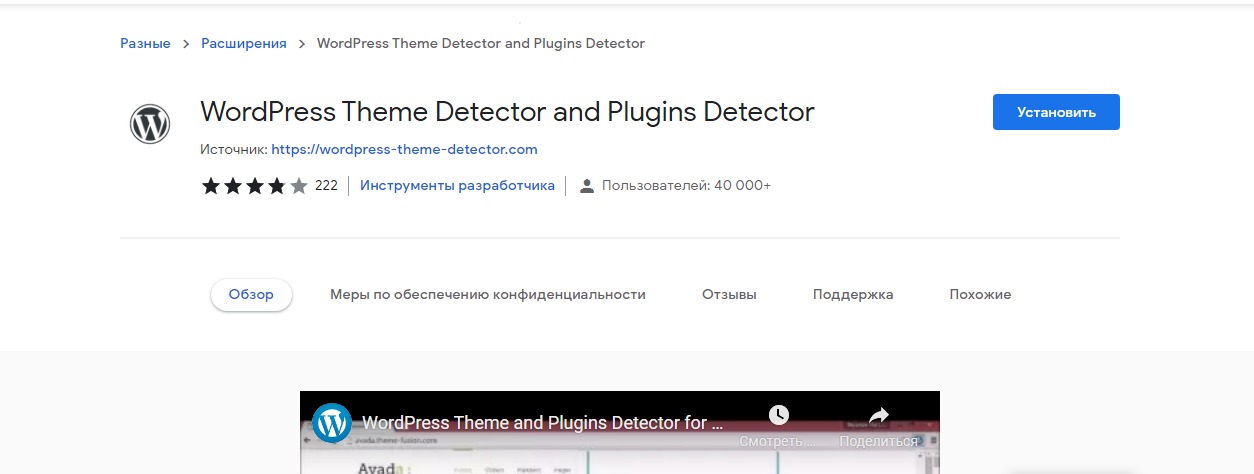
You can find out which WordPress plugins a site uses without even looking at its code. Use the Chrome extension WordPress Theme Detector or one of its equivalents.
As the name suggests, the extension shows which theme and which plugins are installed on a site. Even that much saves a developer an enormous amount of time.
The report on installed plugins looks like this:
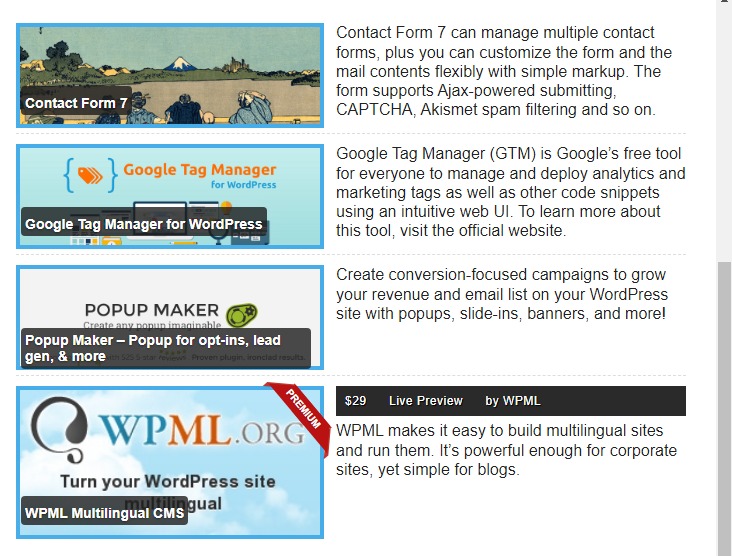
The tool may not show every plugin, so we recommend trying similar browser add-ons as well as the other methods described below.
With online services
Online services give more detail about the plugins, themes and technologies behind a site. You only need to open the service, type the domain you are interested in into the search box and start the scan. How much you get back depends on the service.
The most popular ones:
- WordPress Plugin Checker,
- WPThemeDetector (aimed at detecting WordPress themes),
- What Theme Is That,
- Built With.
These tools do not show every plugin either. They reveal between a quarter and a half of what is there. Much depends on the particular set of add-ons.
That is why a third method is needed.
By reading the code
This method is the most demanding, but it gives the most information. Let us look at how to read HTML code to find plugin data in it.
There are two ways to find plugins through a site's code.
Looking for the directory
Here and below we go through every step in Chrome, but the principle is the same in Opera, Firefox and Safari. Only the interface differs.
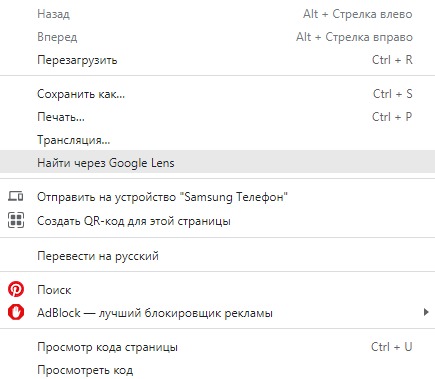
First, right-click anywhere on the site except an image. Choose View page source from the menu.
Then search the code in the window that opens: type wp-content/plugins into the search box.
The results will highlight every plugin directory. Look at the names that follow plugins/
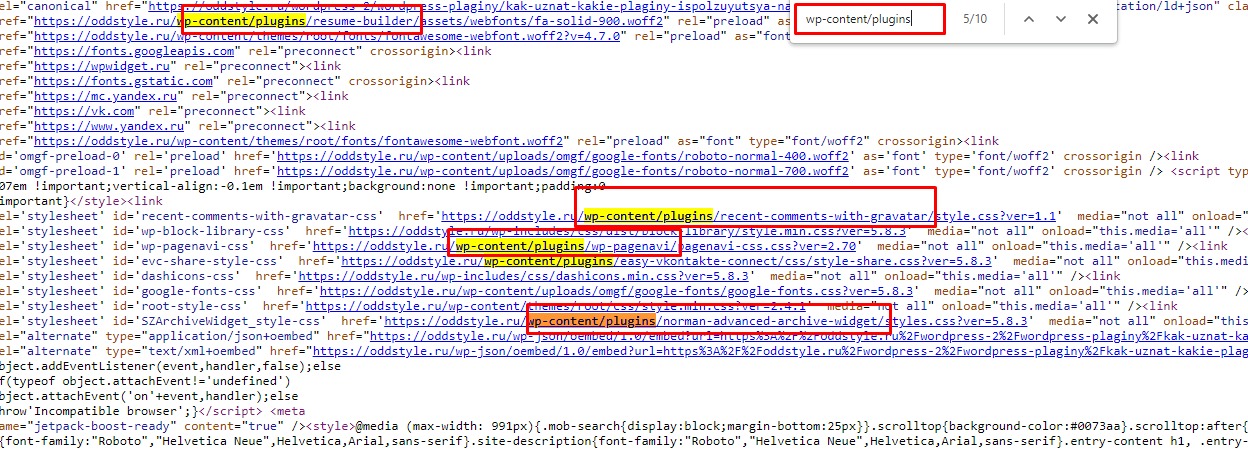
This method shows nearly every plugin. The catch is that plugins can be hidden by dedicated security add-ons.
Looking for comments in the HTML
Many plugins add their own comments to the code. They are shown in green. So when you are hunting for plugins, pay attention to comments. Take the Yoast SEO plugin: this is how it shows up in the code.
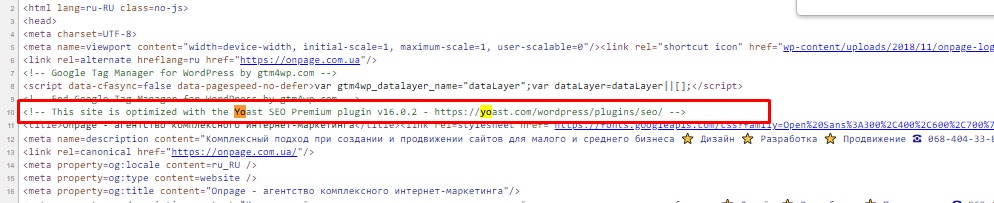
That means you can also search for a specific plugin by name.
Inspecting the code of a web element
Say you want to know which plugin powers a contact form or some other element. Open the page code and click "Inspect element".
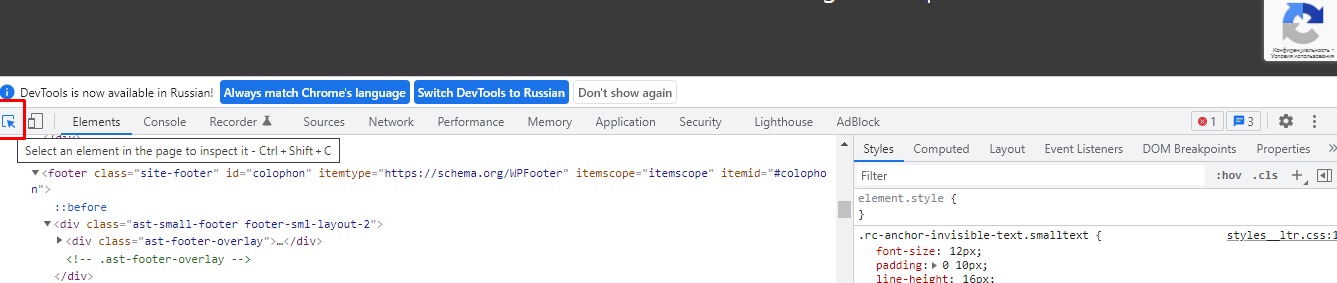
The menu will show the code of that element, and with it the plugin information, if a plugin is involved.
Summary
Analysing the plugins on a WordPress site saves time when you are looking for solutions that work. Use our tips and build sites — Host4Biz will give your projects reliable hosting. And here you can see the prices of our plans.