


Shortcodes in WordPress: what they are, what they are for and how to work with them
This article is 4 years old — prices and terms may have changed.
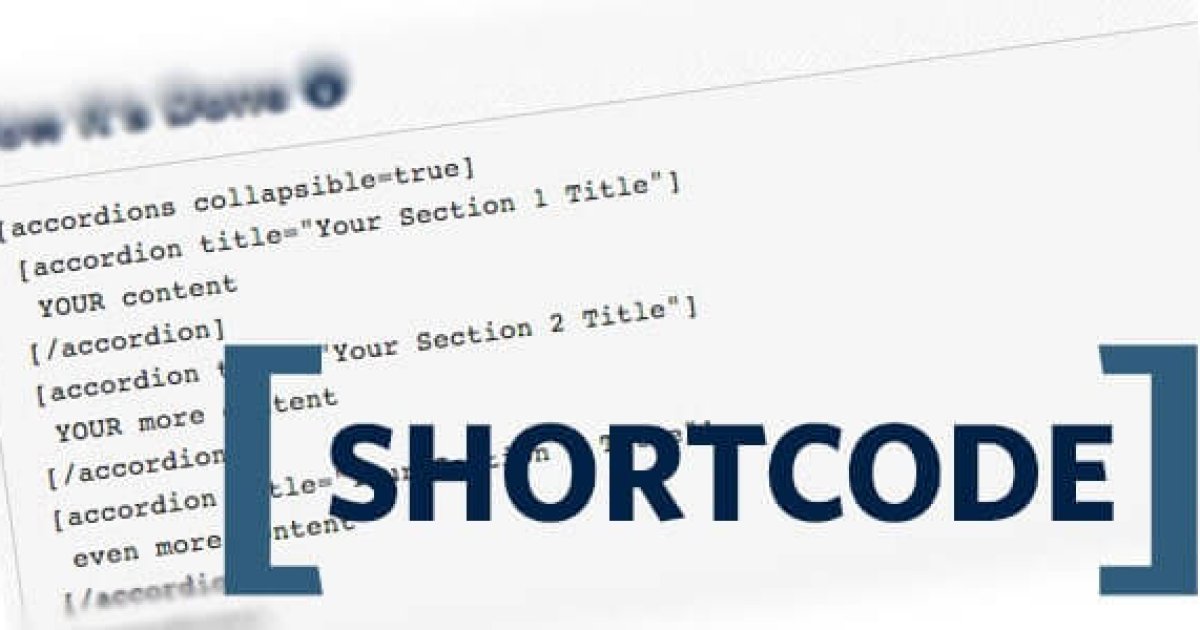
A WordPress shortcode is a construction inside the text that creates the functional element you need on the site — a button, a contact form and so on. The CMS processes shortcodes through a PHP function. Shortcodes first appeared in WordPress 2.5.
For example, the simplest shortcode for creating a gallery looks like this:
[gallery]
This fairly simple tool, available out of the box, extends what developers can do quite considerably. Shortcodes are often used to add buttons, posts, sliders and so on to articles. They can be a good alternative if you do not want to install Elementor or another heavyweight page builder.
Not even the built-in Gutenberg block editor has displaced shortcodes.
For more complex tasks, parameters are sometimes added to a shortcode. Here is the same gallery shortcode with parameters:
[gallery size="large" ids="14243,14242,14241"]
The ids parameter holds the numbers of the images in the gallery; the size parameter governs the size of the element being created.
The standard shortcodes that work in WordPress
The CMS ships with a set of shortcodes that work without any extra steps. The system recognises these elements:
[audio]
[caption]
[gallery]
[playlist]
[video].
How do you display a shortcode without running it?
Sometimes on a WordPress site you need to show a shortcode rather than execute it. For that it has to be escaped. How? Simply add another pair of square brackets.
[[gallery]]
Complex shortcodes can have an opening and a closing tag. In that case the escaped element looks like this:
[[shortcode] … [/shortcode]].
If the code has already been used on the site, you will see it without the double brackets.
How to create your own shortcodes in WordPress
You can create your own shortcodes in WP to extend what the site can do. We will go through two ways. First, how to create shortcodes without any coding skills, using plugins.
There are plenty of tools of this kind. We will cover the most popular shortcode plugin in detail.
Shortcodes Ultimate: the most convenient way to work with shortcodes
A capable and very convenient shortcode plugin. Among the features and advantages it claims:
- more than 50 kinds of active shortcodes;
- quick insertion functions;
- every element it creates is responsive;
- full compatibility with any WP theme or plugin;
- the code is easy to extend;
- a widget of its own;
- compatibility with Gutenberg.
There are also several premium add-ons for the plugin.
The plugin's main settings
What do you need to do for the plugin to work properly? After the usual download and activation, a Shortcodes section appears in the menu. Two parts of it are worth your attention:
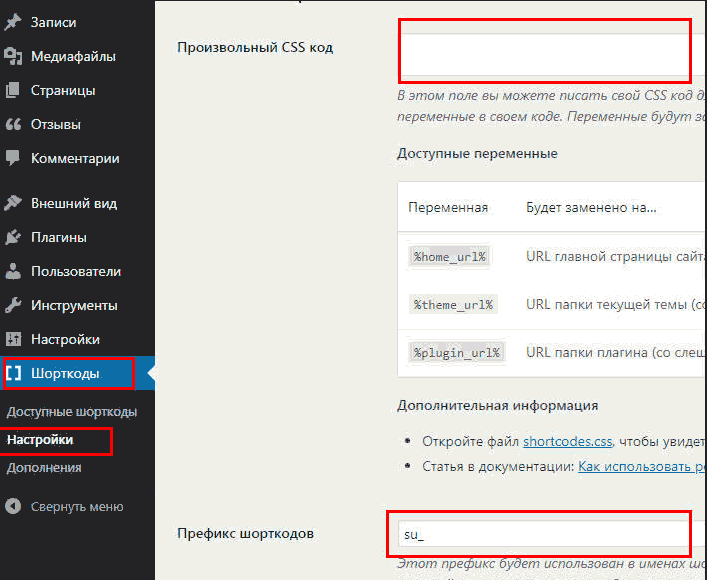
- Custom CSS. You do not have to put styles into the theme if you want to change how the standard elements look.
- The prefix is there so that the shortcodes you use do not clash with code in other plugins. You can set a value of your own.
Available shortcodes
The next section lists the available shortcodes. The collection of elements is very large. Pick one of the options and you will find full reference material on using and configuring that shortcode.
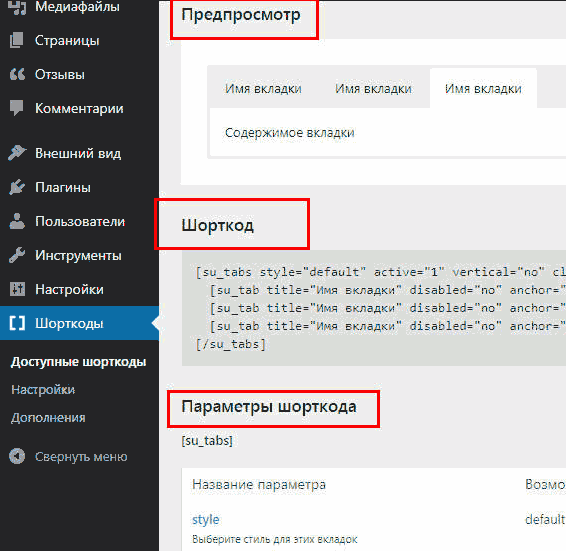
The tab covers everything:
- what the element the shortcode produces looks like;
- a code example;
- every parameter and operator in the block.
Adding shortcodes to posts and pages
To add a shortcode to a post or a page once the plugin is installed, find the Insert shortcode button in the text editor toolbar on the page.
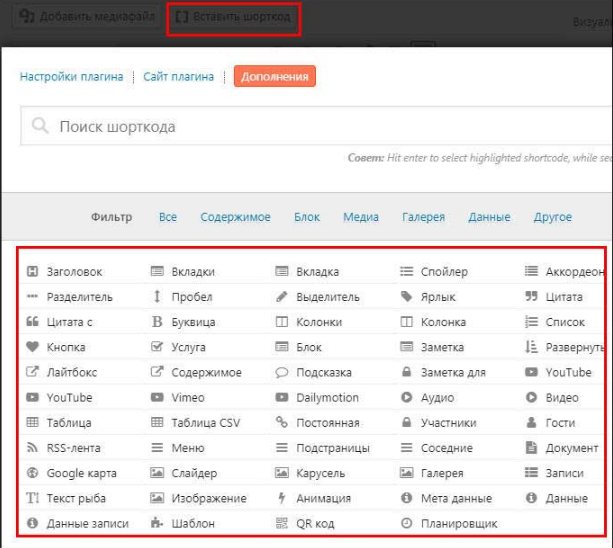
That way you can simply pick the shortcode you need for the part of the page you need.
Adding shortcodes to widgets
The plugin also lets you add shortcodes to widgets. In the appearance settings panel, scroll down, find the shortcode widget and drag it across to the active ones.
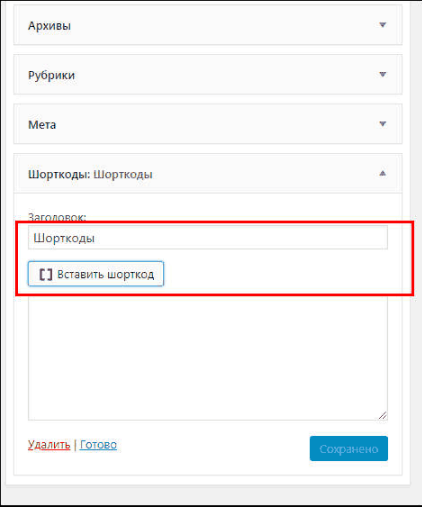
The plugin is very convenient to use. The premium version costs 30 USD for a lifetime licence — money that pays for itself completely.
Other plugins for creating and inserting shortcodes
There are several other plugins for creating and inserting shortcodes. They are less capable, but can still be useful. The most popular and convenient ones:
- Shortcoder;
- CSSIgniterShortcodes;
- Column Shortcodes.
How to create a shortcode without plugins
To create a shortcode without plugins, use the add_shortcode() function. It takes two parameters: the name of the shortcode and the name of the PHP function itself. Here is an example of simple PHP code registering a new shortcode for a site:
add_shortcode( 'foobar', 'foobar_shortcode' )

function foobar_shortcode( $atts ){
	return 'Hello! I am a new shortcode.';
}
This code replaces [foobar] with the line Hello! I am a new shortcode.
Creating shortcodes with attributes
You can add attributes to a shortcode to configure the element it creates more precisely. In such cases it is better to use the shortcode_atts() function:
add_shortcode( 'foobar', 'foobar_shortcode' );
function foobar_shortcode( $atts ) {

	$atts = shortcode_atts( [
		'name' => 'Noname',
		'age'  => 18,
	], $atts );

	return "My name is {$atts['name']} and I am {$atts['age']} years old";
}
Now the text will be replaced with the name and the age you pass in the attribute values.
shortcode_atts() declares the attributes, sets their default values and drops any it does not recognise.
- Shortcode attributes are best written in lower case. Attribute values may contain any characters.
- If a shortcode is passed an attribute that is not among the defaults given to shortcode_atts(), it will be ignored.
Closing shortcodes and shortcodes nested inside shortcodes
The shortcode from the previous example is written like this:
[trueurl anchor="link text" url="link URL"]
Let us rearrange it slightly and write it in this form:
[trueurl anchor="link text"]link URL[/trueurl].
Other shortcodes can be placed inside a closing shortcode. That requires do_shortcode().
function true_url_external( $atts, $shortcode_content = null ) {

	$params = shortcode_atts(
		array(
			'anchor' => 'Host4Biz'
		),
		$atts
	);

	return '' . $params[ 'anchor' ] . '';
}

add_shortcode( 'trueurl', 'true_url_external' )
A shortcode like this will show a link to the site's home page wherever you insert it.
Output buffering inside a shortcode
Sometimes you cannot return the result inside a given shortcode. Buffering is the answer in such cases.
function truehostfobiz_shortcode_callback() {
	ob_start();
	// you can print straight away here with echo()
	// or get_template_part( 'entry' );
	// or close the ?> tag and print HTML directly

	$output = ob_get_contents(); // everything printed ends up inside $output
	ob_end_clean();

	return $output;
}
Using shortcodes with PHP
Here the task is to use the do_shortcode() function correctly.
The function's parameter can be a single shortcode:
echo do_shortcode( '[hostfobiz]' );
Or a shortcode with content:
echo do_shortcode( '[trueurl anchor="Home"]' . site_url() . '[/trueurl]' )
You can also output the content of posts with shortcodes in it.
$content_shortcoded = do_shortcode( get_the_content() );
Summary
We have shown only part of what can be done with shortcodes. But understanding the basic principles will help you build up your coding skills and deliver more complex projects on WordPress.
We will carry on introducing you to what the CMS can do and to the tools for working with it. And of course, at Host4Biz you can always order reliable WordPress hosting for your projects.