


How to set up Google Analytics 4 on a website
This article is 5 years old — prices and terms may have changed.

Google Analytics 4 is the new analytics platform. This version of the tool takes a different approach to collecting information. The latest analytics has a different set of tools and reports, and the interface has changed a great deal. Some marketers and SEO specialists did not warm to GA4. But we are sure a detailed guide to setting it up and using it will take most of the pain away, and you will get on with the updated tool.
What is Google Analytics 4 and what makes it different?
Google's updated analytics service collects information not only about websites. It works with apps too. The changes are substantial: developing and testing them took several years.
Work on Google Analytics began back in 2017. In 2019 the Web + App tool appeared — effectively a beta of the new analytics. About a year later Google introduced GA4.
The key difference is the approach to tracking and collecting data. GA centred on sessions, that is on page views and browsing around a site. GA4 puts the emphasis on what the visitor does. The new analytics distinguishes these types of hits:
- a page view;
- a screen view in an app;
- an event, and so on.
Every interaction with the site ends up in the event list.
Cross-platform tracking. GA4 builds shared statistics across a website and iOS/Android apps. That is very convenient for larger business projects — online shops, marketplaces and online services.
Identifying users across platforms. Every marketer knows that GA counted a user as new whenever they came in from a different browser or a new device. Accuracy suffered as a result. Google Analytics 4 has three levels of identification: by device ID, by user ID and by Google signals. Thanks to that the service counts people, not browsers or devices.
More metrics in the statistics. GA4 shows data on outbound clicks, scroll depth (particularly valuable for long reads), on-site search and more.
Privacy. GA4 uses gtag.js, which works without cookies. Google intends to drop cookies altogether in the future.
Creating a Google Analytics account
First let us go through connecting a site to Google Analytics 4 from scratch. This part of the article is for the case where you are launching a new site that carries no tags from the old analytics.
We start by creating an account.
Registering an account and signing in
To begin with, register a Google account or sign in to one.

Once the details are filled in, click Next and move on to setting up the analytics account.
Setting up a new account
Setup has three stages:
Creation. First name the account and set the access rights.

Configuration. Enter the address of the resource, the time zone you work in and the currency.

At this stage you can also create the previous version of the analytics (Universal Analytics). There is an option to create both types at once — just choose it in the settings.

Google recommends going straight to GA4, so that you do not have to think about migrating the information later or set the analytics up twice.
Company information. The final stage of setup. You have to state the industry the company works in, its size and what you plan to use the analytics for.

Once everything is filled in, simply click Create.
Configuring how GA4 works and shows data
GA4 will only work once you have configured a data stream and added the analytics tag to the site. Before you start advertising campaigns in Google Ads you also have to link the analytics account to the Google Ads account. Below we show how to do all of that properly.
Setting up a data stream
In this example we set up analytics for an online shop, so from the options offered we choose "Web".

Then enter the site address, name the stream and click Create.

The system will then give you a stream ID.

At the bottom of the screen you will see which actions and events the system will track. In our case the list includes:
- the number of page views;
- the number of video interactions and their statistics;
- on-site search data;
- clicks on outbound links;
- downloads of files hosted on the site.
Adding the tag to the site
This step applies if your site does not run on WordPress. Copy the global analytics tag and add it to every page you want to track.

Once the tag is in place, the system will offer to create new data streams.

Linking to Google Ads
For analytics data to show up in Google Ads, the two tools have to be linked.
Go to Product links and choose Google Ads links. The rest is straightforward.
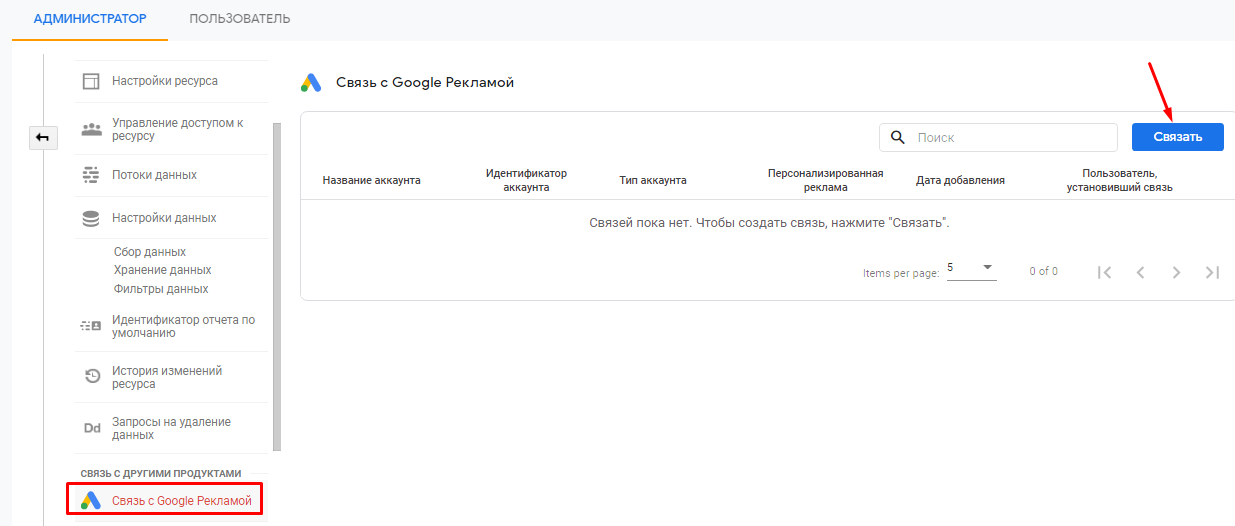
Now pick the Google Ads account you need and attach it to the main GA4 account. Done — your analytics is configured.
Summary
Connecting analytics to a site takes a few minutes. It is far simpler on WordPress sites: there you can use the Google Site Kit plugin or similar tools from other developers.
In other articles we will walk you through the finer points of the new analytics and its interface.
Watch for updates, and do set analytics up on your site. Act on data.