


How to check that a site works through the hosts file
This article is 5 years old — prices and terms may have changed.

When moving a site, and during other work, you sometimes need to check that a resource works before the DNS servers have updated. The system hosts file will do it.
What is hosts?
Hosts is a system text file of the operating system. It holds domain name data and the addresses of the hosts used for resolution. Unlike DNS settings, its contents are entirely under the administrator's control.
Where to look for the hosts file on a computer
The location differs depending on the operating system and its version. Below are the paths in the most widespread and recent versions:
- Windows 7: %systemroot%\system32\drivers\etc\
- Windows 10: WINDOWS\system32\drivers\etc\hosts
- Unix/Linux: /etc/hosts
- macOS X: /etc/hosts
Having found the file, open it in a text editor. Notepad, Notepad++ or anything similar will do.
At the end of the file, add the IP of the server you want to test the site from, and the site's address itself in the form www.website.com or website.com.
Where do you find the IP address?
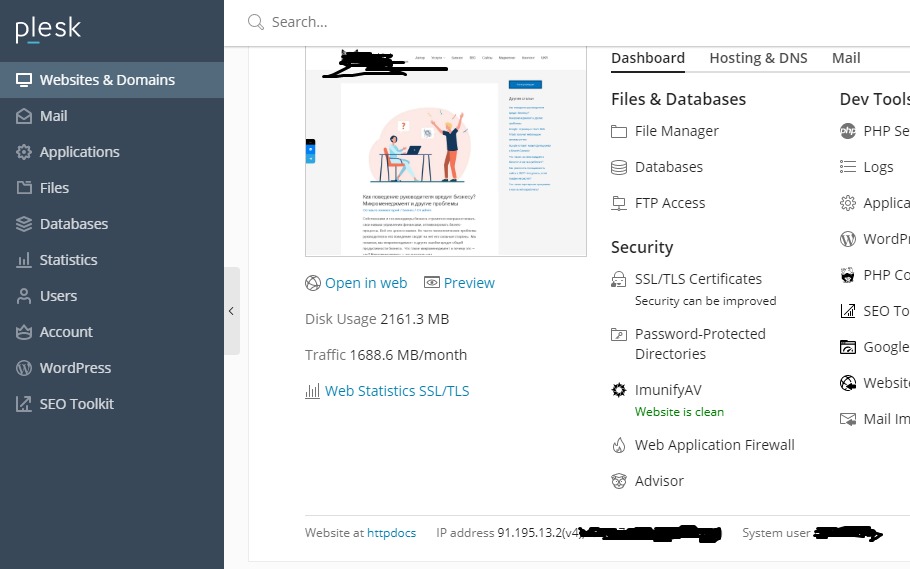
In Plesk Panel that information is shown at the bottom of the screen in the Websites and Domains section.
How to check a site through hosts
To make changes to the hosts file in Windows 10, take these steps:
1) Start the Notepad text editor as Administrator:
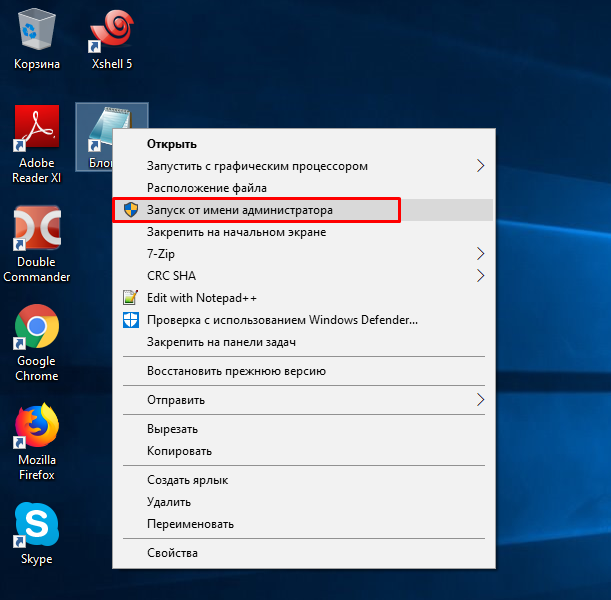
Starting as administrator
2) Click the File menu -> Open.
In the address line type: C:\Windows\System32\drivers\etc\hosts
A file like this will open:
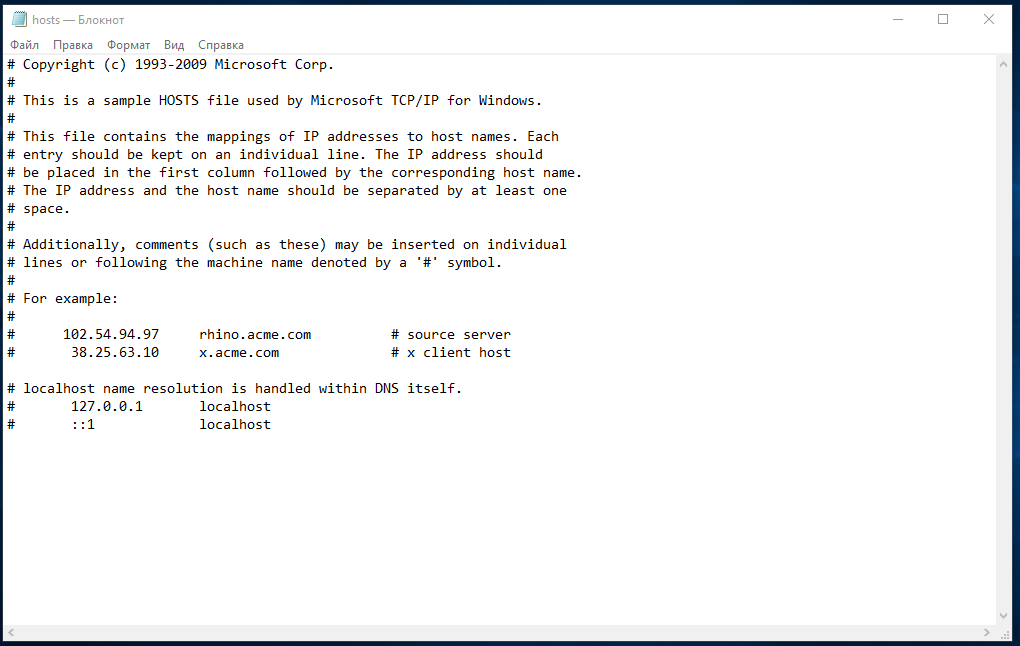
3) The existing lines need not be deleted; just add the ones you need — for instance, for hosting we already have on Plesk:
91.195.13.2 mydomain.foo www.mydomain.foo
4) After that click the File menu -> Save.
To make sure the setting is correct and the site will open from exactly the server you want, ping the domain.
The Windows command line will do it. To start the command line:
Press Windows+R on your keyboard. In the window that opens type cmd and click OK.
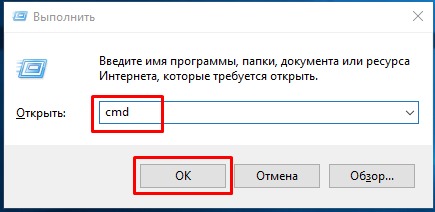
In the window that opens, type: ping mydomain.foo
And you will see your site being pinged at the IP address you entered in the file.
The site can now be opened in a browser and worked with as though it were already at the new IP address. It is worth remembering, of course, that this change is local only: nobody but your own computer can use it.
Once you have checked that the site works, it is best to remove the settings from the hosts file.
Having changed the text in the file, we save it for the time being. The site will now open from the IP you specified. If it displays, the move went correctly and all that is left is to wait for the DNS servers to update.