


How to install WordPress plugins and set them up
This article is 5 years old — prices and terms may have changed.
In an earlier article we wrote about installing WordPress on your hosting and getting a site going faster with WordPress hosting. Now for what to do once the CMS is up and everything is ready for building and growing the site.
Why you need to know how to install WordPress plugins
Many people are still convinced that WordPress is a platform only for a blog, a portal or a corporate site. In reality almost any functionality available to sites on a CMS can be built on it.
Most tasks are solved by installing add-ons. Let us go through how to install plugins for WordPress.
The installation process
There are two ways to install plugins on your site. You can download them from the WordPress site — go to https://wordpress.org/plugins

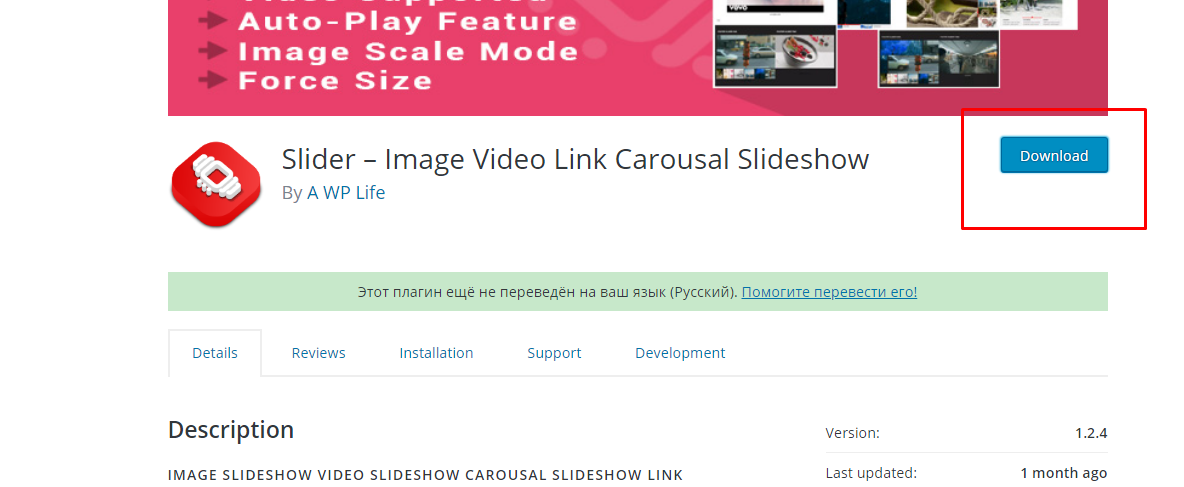
Then open the page of the plugin you have chosen and download the folder with its files:
After that, unpack the folder into the directory on your hosting:

The plugin will then appear in the site menu; all that is left is to activate the component. Go to the Plugins section, Installed tab.

Then find the plugin you chose and click Activate:

In the same place, in the right-hand column, you can turn automatic plugin updates on or off. With that switched on you will not miss new versions of a component.
The second way to add plugins to WordPress is far simpler.
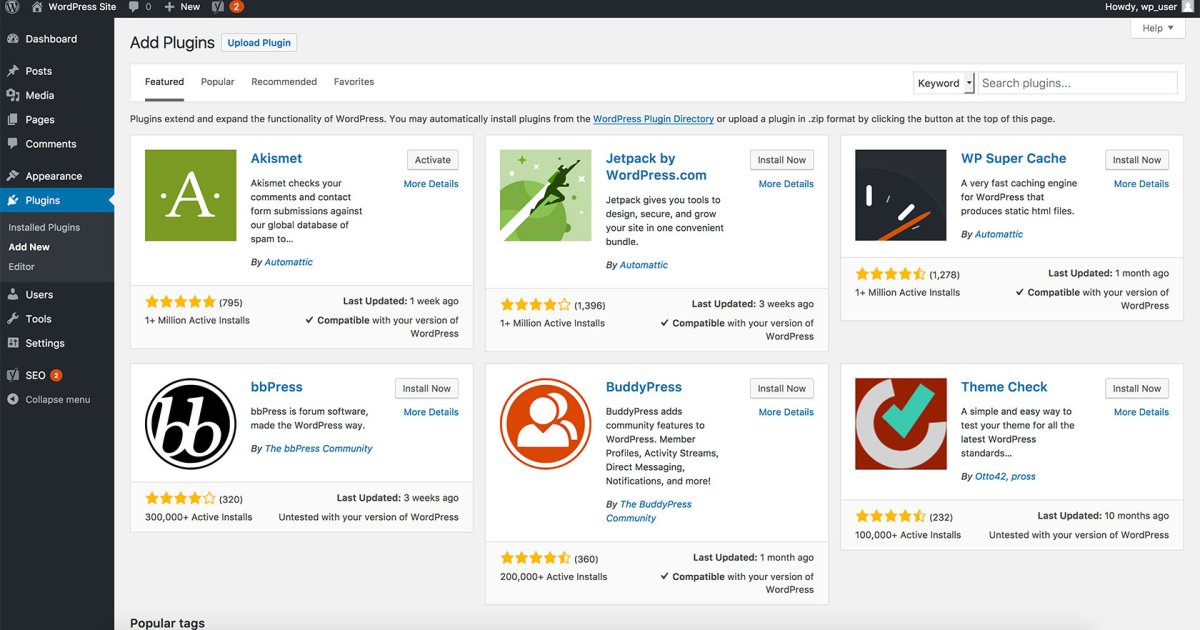
First go to the Plugins section of the admin panel and find the Add New tab.

From here you reach the plugin catalogue you saw on the website

On this tab you can upload an archive with a plugin you downloaded earlier, or find the component you need through the search box and click Install.
After that, go to the installed plugins tab as before and activate the new component.
Why update plugins in WordPress?
Many site owners still do not update their add-ons or the WordPress core. That is a serious mistake, and it can turn into serious trouble, up to losing the site. Why is it worth updating plugins?
- Security. Over time, vulnerabilities and errors are found in plugin code, and one purpose of an update is to remove them. Let vulnerabilities accumulate and the site may be attacked.
- New functionality. Plugins get new capabilities from time to time, and existing ones are improved.
A tip: if you installed plugins by hand, look at the version information before updating. If it is empty or will not open, better not to use that plugin — something is wrong with it.
Which plugins should you install for WordPress?
Choosing among dozens of plugins for a particular task is not easy. But there are some general pointers.
Go by the components with more positive reviews. Also pay attention to the number of downloads and the date of the last update. If the update was more than a month ago, consider installing an alternative.
Summary
Installing and updating plugins on a site is routine work, and very important: the functionality and the reliability of a resource depend on it. Components can be installed by downloading archives from the CMS's official site or through the site's admin panel. You can also use solutions from developers' own sites — but we recommend downloading only components you can trust.
Host4Biz will keep your sites safely stored. Choose our WordPress hosting and you also get a set of pre-installed plugins for a quick start.