


How to add an article, a page or a landing page to a WordPress site
This article is 5 years old — prices and terms may have changed.

We have already gone through installing WordPress on hosting and getting started with a site. In this article we show how to add pages, posts and landing pages to a site and fill them with content.
What is the difference between a page, a post and a landing page?
WordPress lets you create several types of page:
- A page. Used to present a service or a category.
- A post. Published in the site's blog. Such pages carry informational content and company news, and posts are usually split across several categories.
- A landing page. The type of page used to sell a course, a product or anything else.
Adding a post
Adding content in WordPress is arranged fairly simply and logically. Let us look at two ways to do it.
Option one: adding it from the site. For this you have to be signed in as one of the site's administrators.

In the top menu you will see an Add button. It is used to create new pages, posts and landing pages.

Choose Post. The main content window opens after the click.
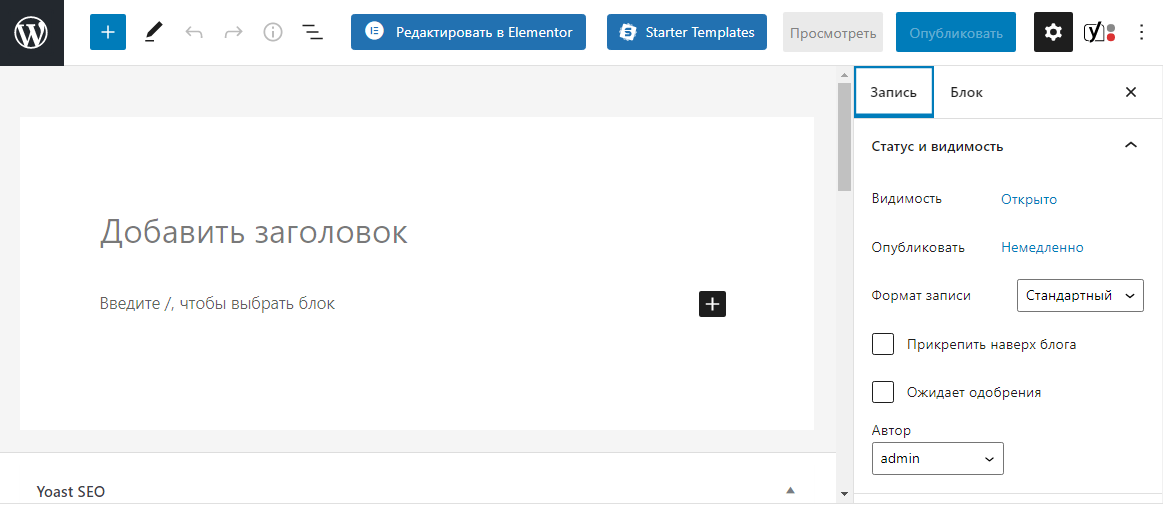
If you only want to use the standard WordPress editor, the text can simply be pasted in. The title of the future article has to be added separately.
It will look roughly like the screenshot below.
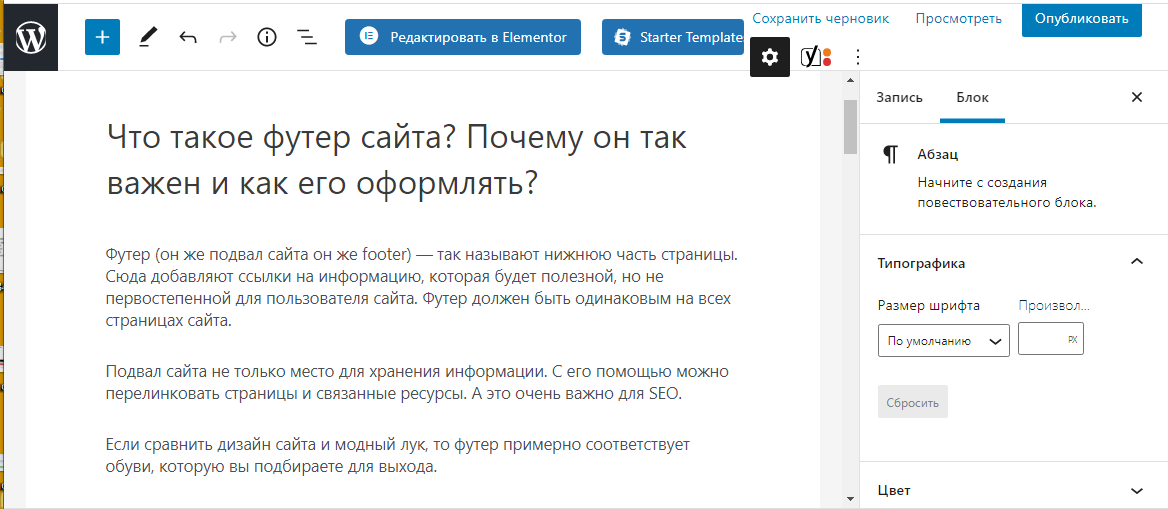
After that you can add images and galleries. Put the cursor in the text field, click the + button that appears on the right and choose the block you need:

With the text field filled in, it is time to move on to the page's title and description. The Yoast SEO plugin makes that very convenient, right in the editing panel. Scroll the page down and you will see:
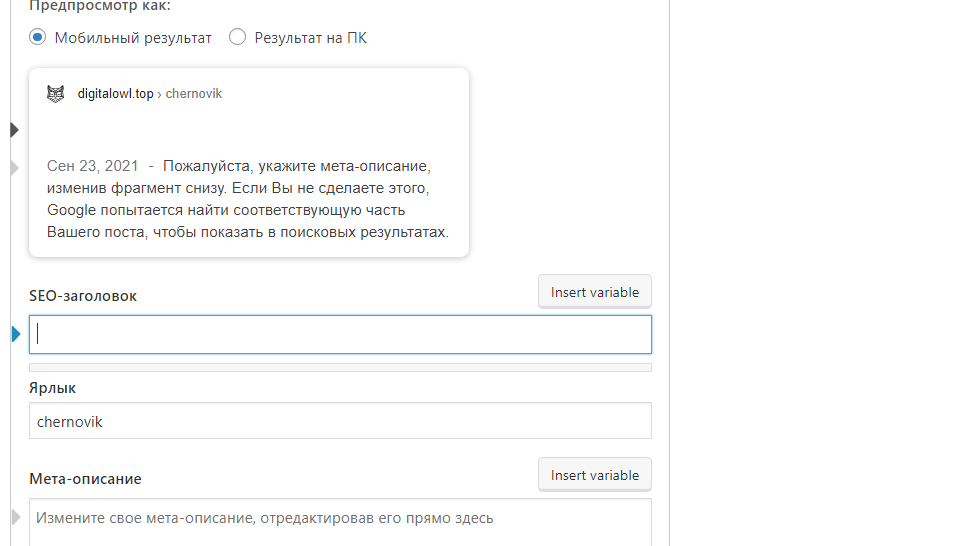
This part of the work is the same whether you are adding a post, a page or a landing page, so we describe it once. Three fields have to be filled in:
- title (the SEO title);
- slug (the last part of the URL);
- description (the meta description).
To write your meta tags correctly, read our article on them.
Be sure as well to add the post to one of the blog's categories and attach a featured image.

Option two: adding a post from the admin panel. Blog posts can be added from the administration panel, and the sequence of steps is almost identical. So we describe only its first step — everything after that happens exactly the same way.

You will then see the same WordPress text editor. You can use it, or edit the page in Elementor, WP Bakery or another builder. We will talk about what such plugins can do in separate articles.
Adding a page
Start by repeating the sequence of steps used to add a post.

Here you can just as easily enter text, add photos and other elements. The standard WordPress editor has several dozen blocks, and each of them can be configured.

Adding a landing page
Adding landing pages to a site starts from the same menu.

The best option for building landing pages is the templates in the Elementor library.

Choose a suitable template and click Insert.
Once it has loaded, the template can be edited with Elementor's tools.

Summary
WordPress lets you add different types of page, and content for them, quickly. That is one of the CMS's important advantages. Host4Biz will provide reliable, convenient hosting for WordPress sites — and we will also show you how to work with this CMS.