


How to protect a WordPress site from brute force and other threats
This article is 5 years old — prices and terms may have changed.

Brute-force attacks are attempts to gain unlawful access to a site or to information on a server by trying possible combinations of password and login. Bruteforce translates literally as "crude strength".
Think the problem will pass your resource by? Quite likely you do not run a media portal with tens of thousands of visits a day or a large marketplace. But it is not only large resources that get attacked.
The thing is that the attackers' final target is often not the site at all, but the server. Once broken into, resources can be used to store viruses, send spam and carry out other unlawful activity.
Give the site's admin panel as much attention as you can. It is a necessity, and your contribution to everyone's security. However reliable the measures a hosting provider takes, being unprotected against brute force can render that protection ineffective.
We will go through several ways of keeping an admin panel safe from bruteforce attacks.
Create a strong password
Brute force means trying passwords one after another. So it is only logical to create a strong password and change it from time to time — the chance of it being guessed then drops. This rule applies to all users, not just administrators.
Strong passwords with digits and special characters should also be set on the hosting control panel and on every other account connected with the site.
What makes a password reliable?
- A total length of more than ten characters. Twenty to twenty-five characters would be ideal.
- Digits in the password.
- Several special characters in the password.
If you want a password that is easy to remember, use three or four words that are not logically connected and do not add up to a phrase. Digits or special characters can go between them.
A third acceptable strategy is to take a coherent phrase in your native language and type it with the English keyboard layout.
Change the login of the site's first user account
Create accounts with logins that are not obvious. Names such as admin or administrator are easy to guess. There are real cases where the login was Admin and the password was Admin too — a combination that will be guessed immediately, especially if you have not changed the standard sign-in page.
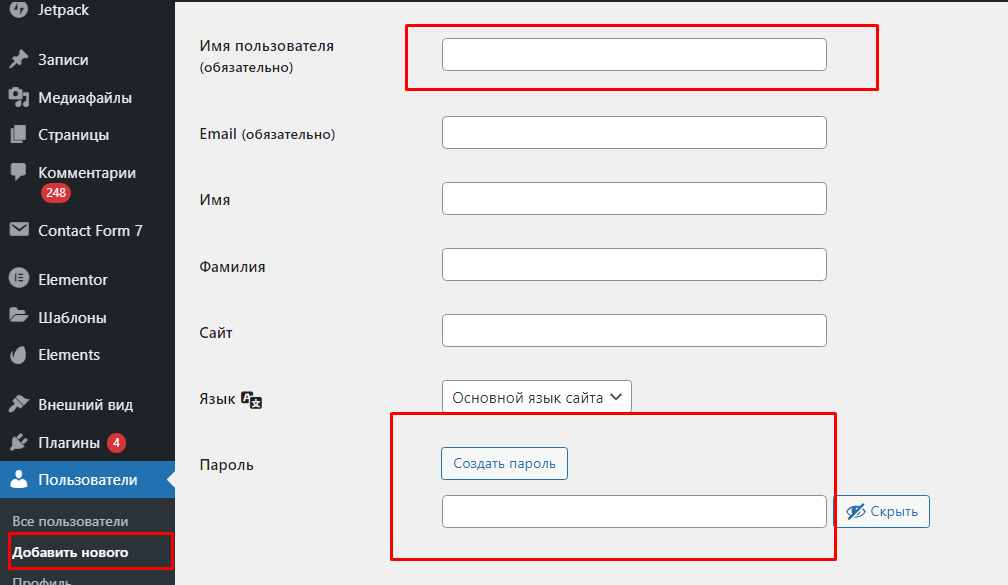
Once the new user account is created, delete the first one.
Disable xmlrpc.php
Attacks that fire automated requests at this file are very common. The reason is that the method lets an attacker try tens of thousands of combinations at once: the time needed to break in falls while the load on the server grows.
To deny attackers that advantage, access to the file is disabled or restricted.
In most cases the file is not used at all. If you are not sure, back the site up before carrying out the steps below.
Disabling it with WordPress plugins
To disable the file quickly, download and activate one of the dedicated WordPress plugins. Simply type "xmlrpc" into the search box on the official WordPress marketplace.
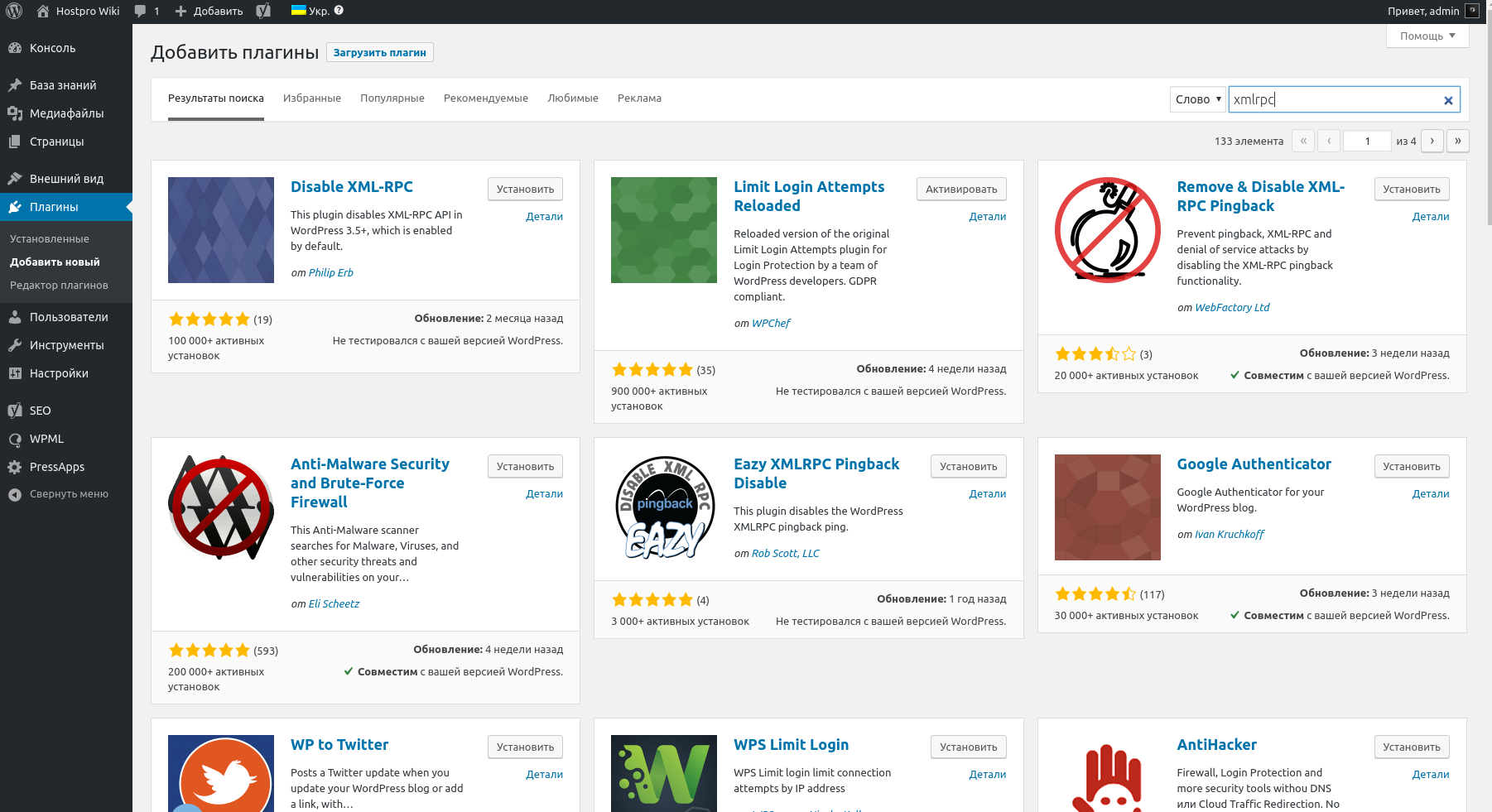
Be sure to activate the plugin you have chosen and switch on all the functions you need in its settings menu.
Denying access to the file through .htaccess
You can change the .htaccess file in the site's root directory. A short fragment of code there will improve the resource's protection considerably.

There is a second option as well:

Here you list the addresses the file will remain available from, should that be necessary.
Change the address of the admin panel
This is a harder method, but a very effective one. The logic is that attackers simply cannot find the address of the site's admin panel. It can be changed by hand or with plugins along the lines of WPS Hide Login.
After installing and activating it as usual, you will find the plugin's menu in the Settings section.
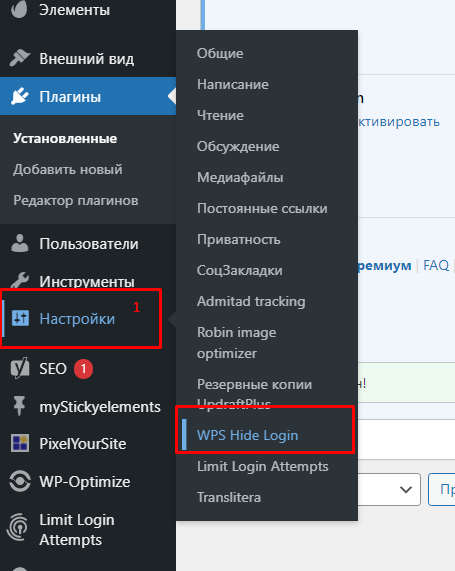
The sequence of steps by hand:
- Rename the file wp-login.php in the site's root folder. Use a non-obvious sequence of words with hyphens as separators — for example new-hidden-login-page.php.
- Inside the file, replace every mention of wp-login.php with the new name you gave it.
- The same has to be done in several more files in the root directory.

Do not skip a single item on that list. The file manager in Plesk will help you find the files faster.
Only after all three steps will the sign-in page live at its new address, yourwebsite.com/new-hidden-login-page.php. Changing the address with a plugin is far simpler and faster. But if for some reason you would rather not rely on third-party components, or you enjoy digging through files, the method above works perfectly well.
Protection through what Plesk offers
Host4Biz clients administer their sites through Plesk Panel. One of the reasons we chose this particular tool lies in what it can do: Plesk offers ways to protect a site.
The Fail2Ban method — blocking access to the site by IP address. This protects a site from attacks that try logins and passwords one after another. The tool scans the site's logs for suspicious events, and when the number of suspicious sign-in attempts from a single IP reaches a certain figure, it blocks that address. A second, gentler option is possible, where the tool sends a notification by email and the final decision is left to the site administrator — but we recommend that route only for experienced users.
The general logic of Fail2Ban is set by jails. That is what a list of rules for a particular scenario is called, and it is the jail's settings that determine what happens when an attack is detected.
Fail2Ban is switched on by default in Plesk Obsidian, and every available jail works from the start. In most situations leaving the default settings alone is the best decision.
If you understand what you are doing and why, the settings can be changed by hand. Here is how, step by step:
- In the Security section, find the IP Address Banning (Fail2Ban) tab.
- Then open Settings. Several parameters can be changed here:
- The IP ban period. The length of time, in seconds, for which access to the site from a suspicious address is blocked. Once it expires, the address is unblocked automatically.
- The interval for detecting further attacks. The period over which the system counts sign-in attempts and other harmful or suspicious actions. Say the parameter is set to 600 seconds: if there are X unsuccessful sign-in attempts within that time, the address is blocked.
- The number of failed sign-in attempts allowed. This parameter is tied to the previous one — you decide after how many failed attempts access from a given IP should be blocked.

You can also add trusted IP addresses that will never be blocked under any circumstances.
To do that, go to IP Address Banning (Fail2Ban) > Trusted IP Addresses > Add Trusted IP Address.
Answers to other questions about using Fail2Ban are available in the documentation.
Plugins that protect against brute force and other threats
A WordPress site can be protected from brute force and other threats even without deep knowledge of code or of the CMS. It is enough to install dedicated plugins and configure them properly. Here are several tools for keeping a site secure.
iThemes Security — all-round protection against every main threat
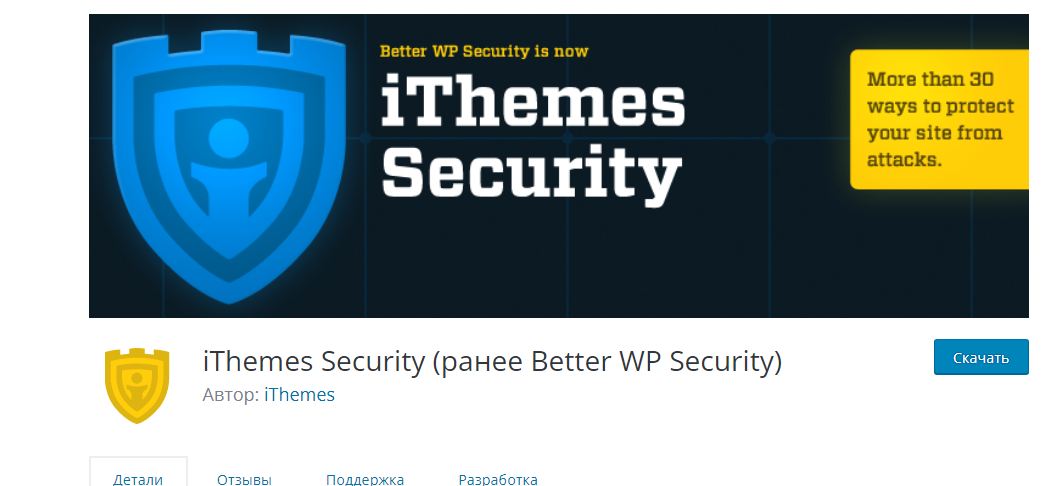
This is one of the more powerful tools for protecting a shop, a portal or a corporate site, with more than 30 built-in services for protecting the login, recovering after a break-in and more. The plugin spots vulnerabilities, outdated versions of WordPress and PHP, and passwords weak enough to be guessed.
The free version offers every basic security function. But for serious, heavily loaded projects it is worth moving to iThemes Security Pro at 80 dollars a year. For that you get priority technical support with a ticket system, and the plan covers two sites. If you want to secure more, a more expensive, advanced plan is available.
Now a few words about what the PRO version does. iThemes Security Pro protects passwords, blocks attackers, backs up your database and adds two-factor authentication.
The features and advantages that make this plugin worth installing:
- Google reCAPTCHA integration as extra protection for the sign-in page.
- Forcing SSL for every address on the site, provided the server supports it.
- Detecting and blocking several types of attack on the server and on your file system.
- Watching for unauthorised changes to the file system and raising an alert when they happen.
- Changing the database prefix.
- Creating a new path to the wp-content folder to protect it more reliably.
- The plugin scans your files periodically, comparing the WordPress installed on the server with the current version of the CMS. The point is to spot any injected malicious code quickly.
- It refreshes the WordPress salt keys, making them stronger.
- Setting a maximum lifetime for every password. That is very convenient and raises security considerably, since you will certainly change the password on every account.
- The unusual "Away Mode". This function can be switched on for a period when no changes are planned: access to the admin panel is blocked entirely for the whole interval, and is enabled again automatically once the set time expires.
- Other important functions. Among them 404 error detection, brute-force protection and password strength checking.
Wordfence Security

Here simplicity is combined with powerful tools for dealing with the main threats, among them secure sign-in functions and tools for recovering quickly after a break-in. One of the advantages of Wordfence is its analytics, which help you study general trends in traffic and in attempts to break into the site.
Wordfence offers an excellent free set of security tools. It includes everything from a firewall to deflecting brute-force attacks.
The premium version sells from 99 dollars a year, and the plan covers one site. Its makers offer great terms for developers, giving large discounts to anyone looking after several resources: buy 15 or more licences, for instance, and you get 25% off, or 74.25 dollars per licence. Wordfence works out cheaper if you build several websites and want to protect them all.
The functions that make WordFence Security worth installing:
- The free version will be enough to protect a small corporate website or online shop effectively.
- Convenient plans for site developers with a multi-licence subscription.
- A full set of built-in firewalls. There are tools for blocking by country, selective manual blocking, brute-force protection, and real-time monitoring and blocking of threats.
- The plugin monitors visits in real time. The algorithm analyses Google's scanning activity, the pattern of sign-ins and sign-outs, and which visitors are clearly people rather than bots.
- The plugin brings several very convenient tools with it — the ability to sign in to the admin panel from a mobile phone, for instance, and to test passwords for strength.
- A comment spam filter removes the need to install a separate plugin for that.
- It keeps an eye on your plugins and reports whether any of them have been removed from the WordPress plugin repository, usually because they turned out to be insecure or compromised.
Acunetix WP Security
The plugin works as a vulnerability scanner and offers solutions for every problem with a site's protection. The tool checks every aspect of security:
- passwords;
- access rights;
- database protection;
- the display of sensitive information, and so on.
A serious advantage of the tool is that it is 100% free.
Its main capabilities and advantages:
- it can work with multisites;
- a built-in tool for backing up the database;
- turning off the "wrong login or password" hint on the sign-in page;
- it hides the WordPress version everywhere except the administration panel;
- reports on scan results and on access rights to the site and its files;
- changing database prefixes, and more.
WP fail2ban — a tool for blocking attackers by IP

WP fail2ban does one thing only, but an important one: it protects against bruteforce attacks by blocking access to the site from particular IPs. The method is fairly radical, but it is often the most effective one.
The add-on constantly records every sign-in attempt, whatever its nature or outcome, to the system log through LOG_AUTH. You can set a soft or a hard ban, which differs from the more traditional approach where only one is available.
WP fail2ban needs no configuration. In fact all you have to do is install it and let it work its magic. The tool is also completely free.
The features that make WP fail2ban an excellent solution:
- A choice between a hard and a soft block.
- Integration with CloudFlare and with proxy servers.
- Preventing spam and malicious comments on the site's pages.
- The plugin also logs information about spam, pingbacks and other actions harmful to the site.
All In One WP Security & Firewall

The plugin's interface is intuitive. Even a beginner will see figures such as the security level clearly, and the menu also shows recommendations for protecting the site.
Its functions are split across three levels: basic, intermediate and advanced. The main capabilities of this plugin:
- protecting the accounts of every user,
- blocking brute-force attempts;
- extra protection when new accounts are registered;
- advanced security measures for files and the database.
The capabilities and advantages of this component:
- There is a blacklist function where you can set the conditions for automatically blocking unwanted users and addresses.
- Quick, simple backups of the .htaccess and .wp-config files, with built-in restore.
- Every function of the tool is available free.
Summary
Each of the methods listed reduces the chance of a brute-force break-in, and together they give the strongest effect. We have picked out and described protective measures that can be put in place even without deep knowledge of programming or system administration — so these recommendations will be useful to everyone. Start applying them today.
Protect and grow your site, and the Host4Biz team will provide reliable hosting and help you along the way.