


What caching is and how to switch it on
This article is 5 years old — prices and terms may have changed.

To lighten the load on the server and speed a site up, page caching is switched on. The technology improves the experience of visitors and keeps them on the site.
What is caching? How does the technology work?
When you open a web page, your device turns to the server the site is stored on. The request is processed, the server answers, and the information appears on the screen of a desktop or a mobile device.
After every request the server has to process the information all over again, and that increases the load. If there are too many requests, 5XX server errors start to appear: the page does not work and an unhappy visitor leaves the site.
Caching is the technology, and the process, of storing in the browser the data already loaded from the server and needed to display the pages of a site being visited.
The structure and appearance of many elements of a site do not change — order buttons and the navigation menu, for example. Those elements appear at many URLs.
Caching lets the site's elements load once and be shown again without loading the server and without spending a lot of unnecessary traffic.
Types of caching
- Browser caching. Here the device itself creates and stores a copy of the static elements of the site being viewed. Most often that is text, images and some scripts. When a page is opened, the browser cache speeds the loading up.
- Server-side caching. Everything stays on the server, which keeps the results of requests. Thanks to that, identical requests do not have to be processed several times over.
How to switch server-side caching on quickly
Now let us see how quickly and simply server-side caching can be switched on if you use WordPress hosting from Host4Biz. We have already published an overview of what Plesk can do, so you know the panel has a WordPress Toolkit section.

That tab holds everything you need to turn caching on at the server.

All it takes is flipping the switch to the right. Caching starts working within a few seconds. We would not recommend experimenting with the caching settings without a clear idea of what you are after.
Browser caching
This type of caching can be configured with WordPress plugins. The best-known caching plugins are:
- WP Super Cache.
- W3 Total Cache.
- WP Fastest Cache.
Most of that list, though, needs configuring. We will share a less obvious solution that gives good results: the WP-Optimize plugin will handle caching too. Install and activate it, then go to the site's admin panel.
.png)
Here everything is just as simple. You only have to move one switch.
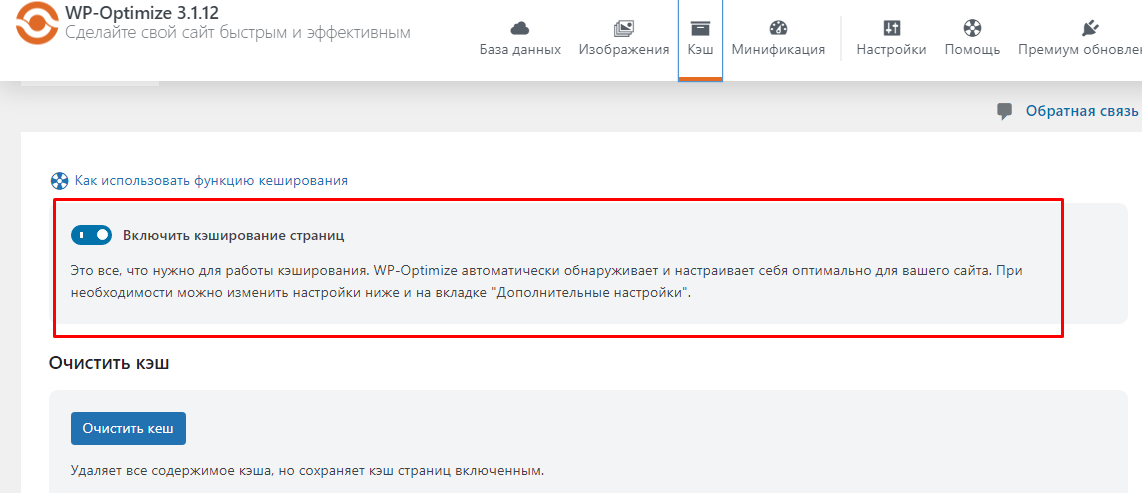
If you need to, the same tab will clear the cache so you can check how the site behaves.
Conclusions
We have shown two simple ways to turn page caching on and speed your site up — through what our hosting offers or through plugins on the site. Use them, and grow your online projects with Host4Biz.